Host Your MongoDB Database
MongoDB provides reliable NoSQL persistent storage for your applications. Code Capsules provisions MongoDB Capsules on MongoDB Atlas, giving you a managed cluster with connection details, scaling, backups, and version management from the dashboard.
Create a MongoDB Capsule
Log in to your Code Capsules account and open the Space that will contain your MongoDB Capsule. Click the yellow + button in the bottom left, select New Capsule, then choose MongoDB, your Team, and Space.
On the Plan & Deploy screen, configure your capsule:
- Cluster Type — choose Dedicated for dedicated CPU and RAM on an instance size you select, or Shared for lower-cost shared resources. A Shared cluster can be upgraded to Dedicated later from the Scale tab.
- Version — select a MongoDB major version. Dedicated clusters support 7.0, 8.0, and latest (automatic upgrades when new versions are released). Shared clusters run 8.0.
- Plan — choose an instance size. For Dedicated clusters, adjust Storage and Replicas (3, 5, or 7). Shared clusters use 5 GB storage and 3 replicas, which cannot be changed until you upgrade to Dedicated.
- Capsule Name — enter a name for your capsule.
- Click Create Capsule.
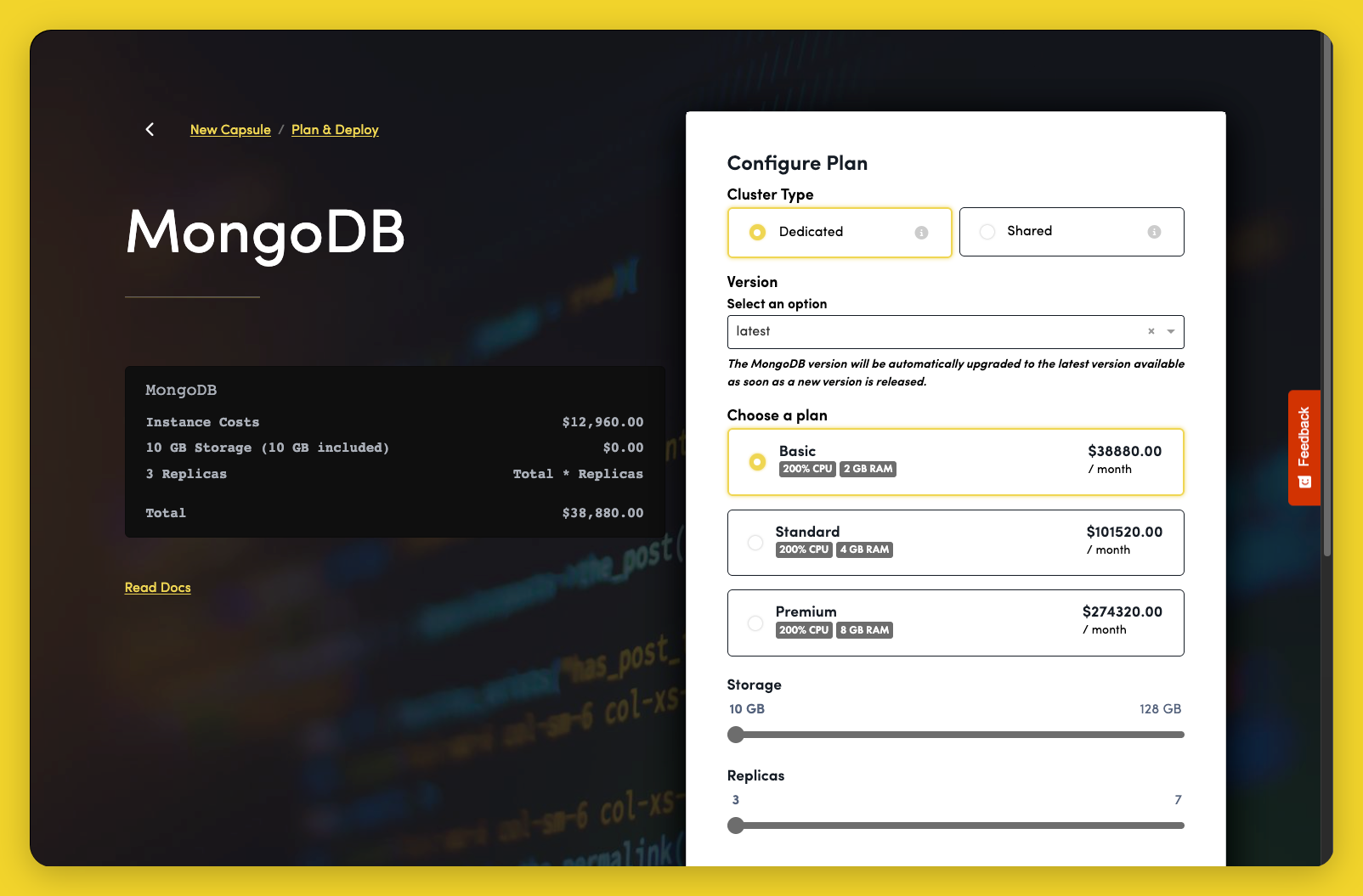
Provisioning can take a few minutes. The capsule status on the Details tab shows Creating until the cluster is ready.
See Deploy for product documentation and framework guides.
View Connection Details
Open your MongoDB Capsule and go to the Details tab. Once the capsule is ready, the Connection details section shows:
- Database name
- Username
- Password
Click show to reveal credential values, or use the copy icon to copy a value to the clipboard.
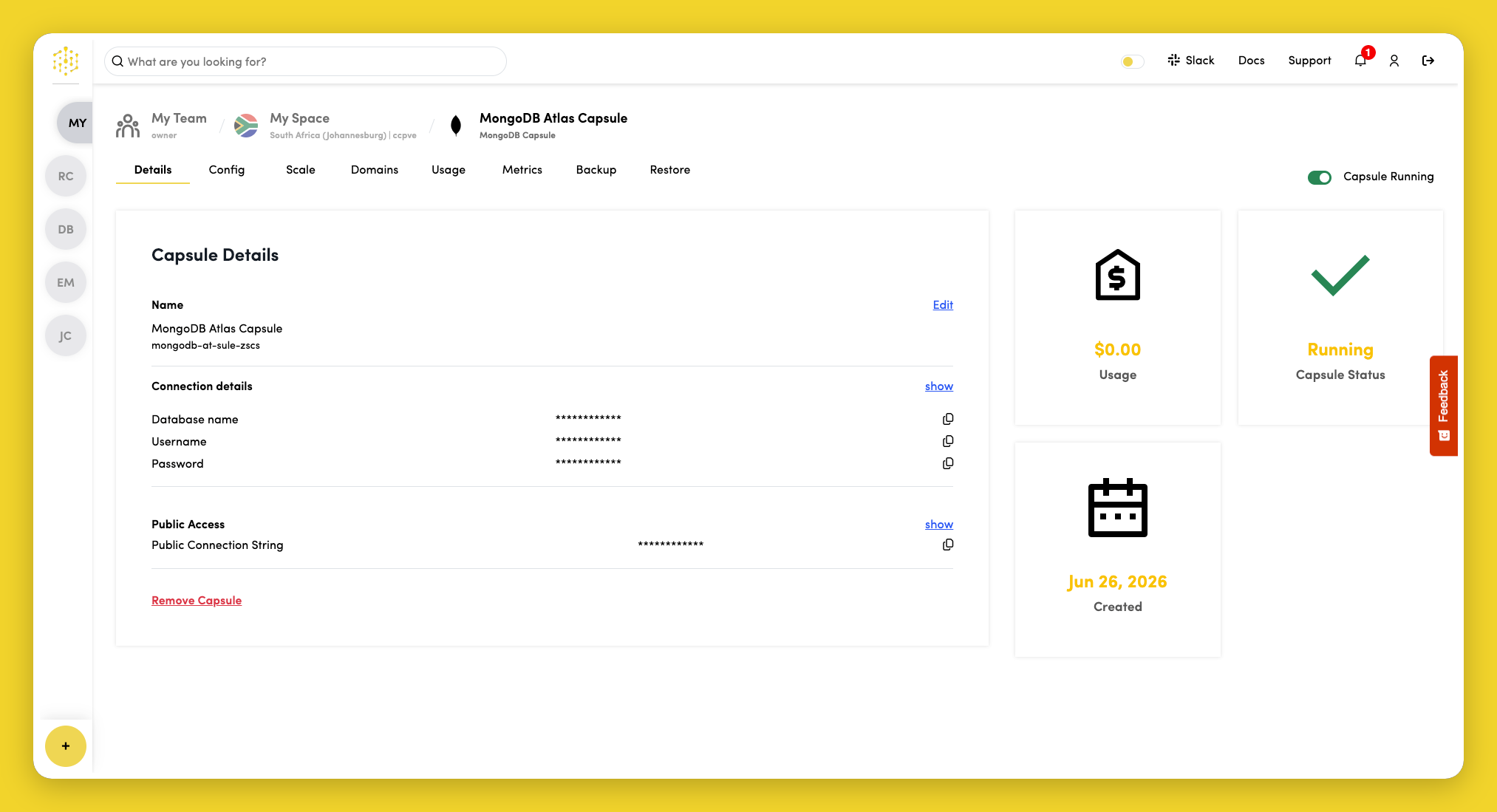
Below the connection details, the Public Connection String is available once the capsule has been created. This is the connection string your applications should use. Click show to reveal it, then copy it into your application configuration.
Unlike older self-hosted database capsules, MongoDB Capsules do not require you to enable a public access toggle—the public connection string is provided automatically when the cluster is ready.
Connect a MongoDB Capsule to a Backend Capsule
To connect a MongoDB Capsule to a Backend Capsule on Code Capsules:
- Open your Backend Capsule and go to the Config tab.
- Scroll to the Data capsules section and click View next to your MongoDB Capsule.
- Copy the Public connection string from your MongoDB Capsule Details tab if it is not listed in the environment variables modal.
- Add it as a
DATABASE_URLenvironment variable on your Backend Capsule.
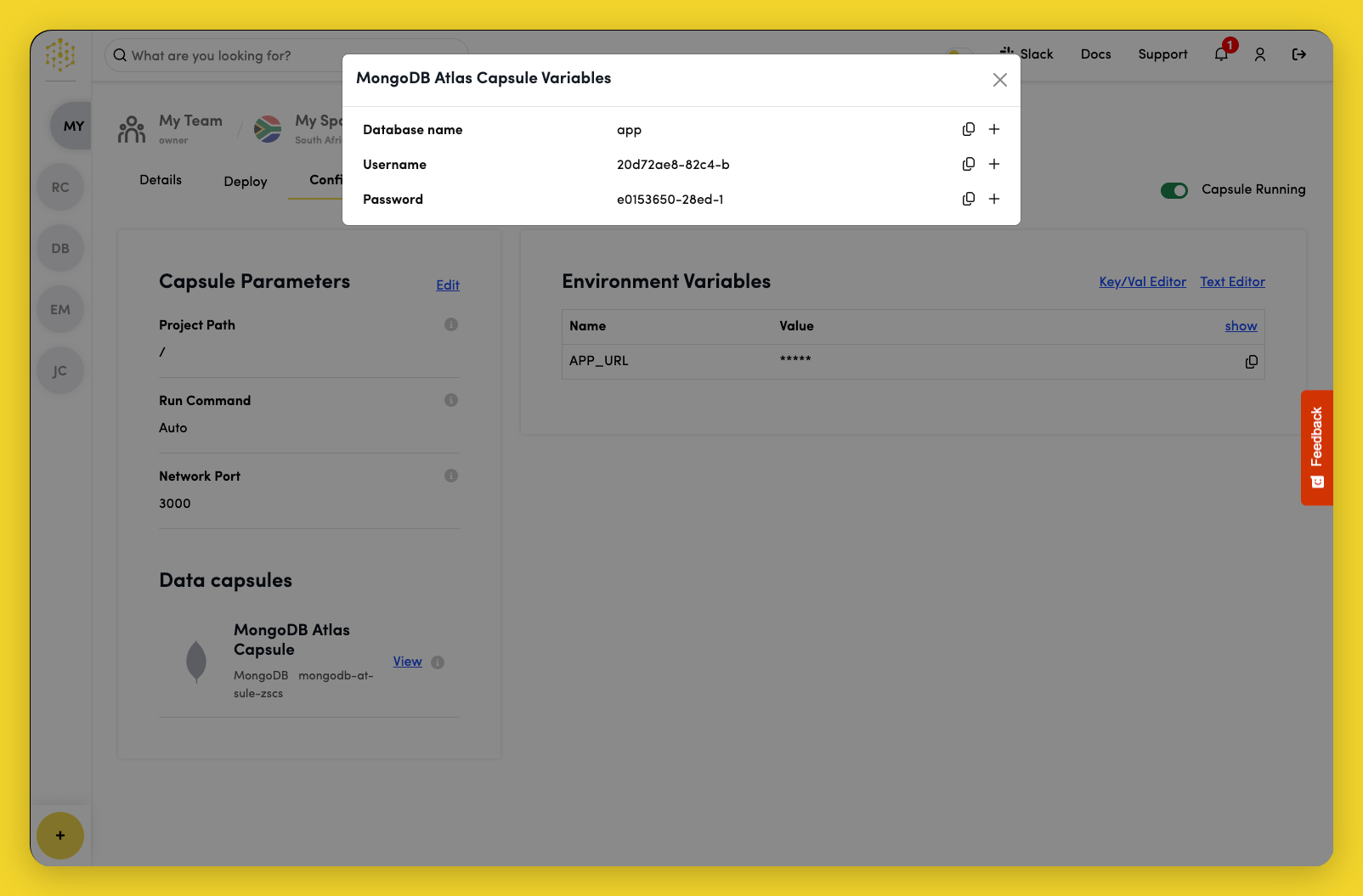
Your application can read DATABASE_URL to connect to MongoDB. The connection string uses the mongodb+srv:// format and includes authentication credentials.
Python example
import os
from pymongo import MongoClient

client = MongoClient(os.getenv("DATABASE_URL"))
db = client.get_default_database()
Node.js example
const { MongoClient } = require('mongodb');

const client = new MongoClient(process.env.DATABASE_URL);

async function connect() {
  await client.connect();
  const db = client.db();
  // Use db here
}
Connect from Outside Code Capsules
To connect from a local machine or another hosting provider, copy the Public Connection String from the Details tab of your MongoDB Capsule and set it as DATABASE_URL (or equivalent) in your application.
Use the same Python or Node.js examples above, substituting your connection string directly if you are not using environment variables from Code Capsules.