Configure Your MongoDB Database
Configure a MongoDB Capsule from the Details and Config tabs of the Capsule dashboard.
View Connection Details
The Details tab provides connection details once the capsule is ready.
Click show in the Connection details section to view:
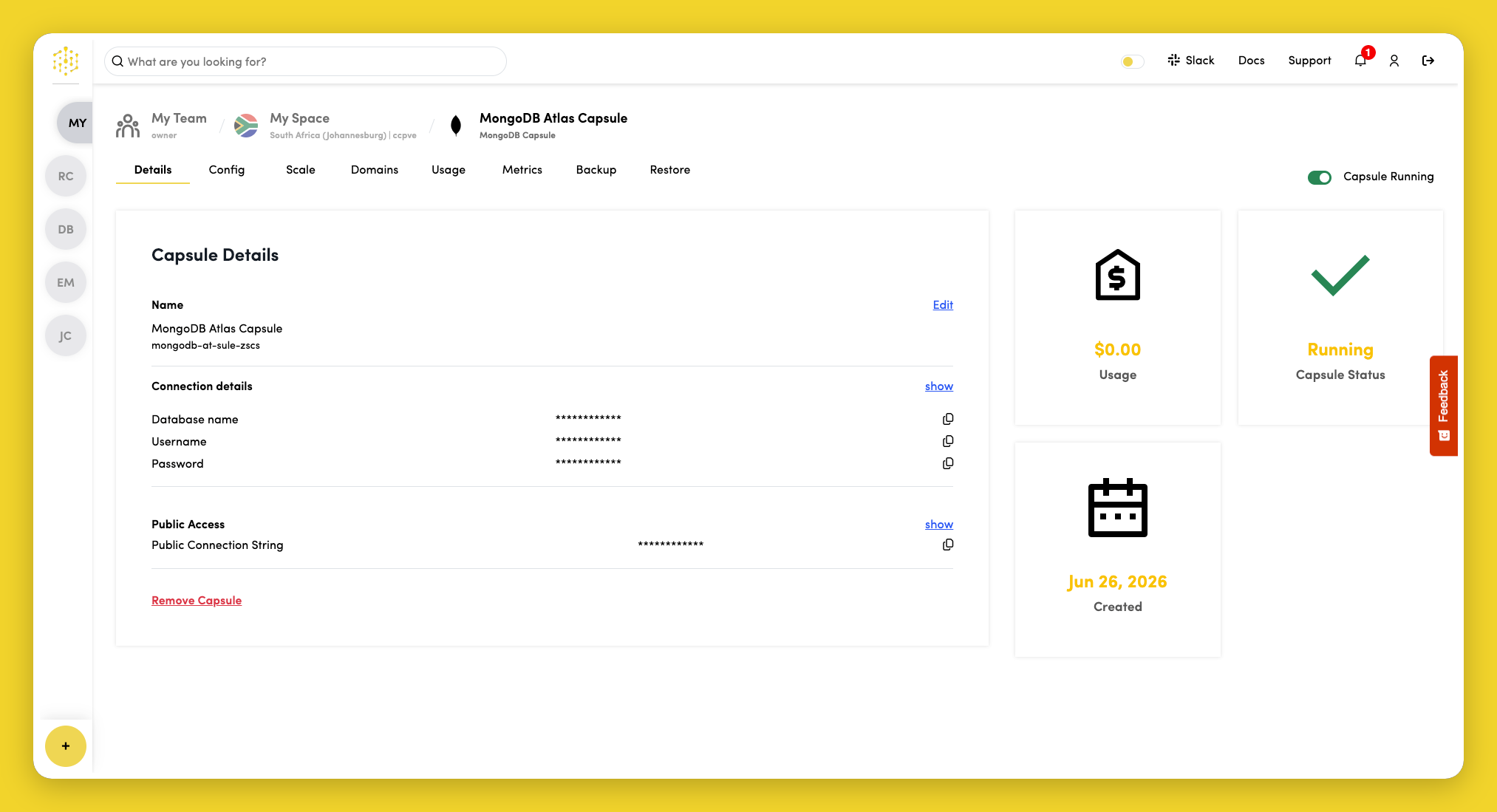
- Database name
- Username
- Password
While the capsule is still being created, an info message explains that connection details will appear when provisioning completes.
Public Connection String
MongoDB Capsules provide a Public Connection String on the Details tab. This string is available once the capsule has been created and is the URI your applications should use to connect.
Click show next to Public Connection String to reveal the value, then use the copy icon to copy it to your clipboard.

The string uses the mongodb+srv:// format and includes embedded credentials.
Edit Capsule Name
To change the name of the Capsule, click Edit next to the Capsule name in the Capsule Details section on the Details tab.
Configure MongoDB Version
Version configuration is only available for Dedicated MongoDB Capsules. Shared clusters cannot change their MongoDB version from the dashboard.
Additional MongoDB configuration is available in the Config tab.
In the MongoDB Configuration section, click Edit to change the MongoDB server version on Dedicated clusters.
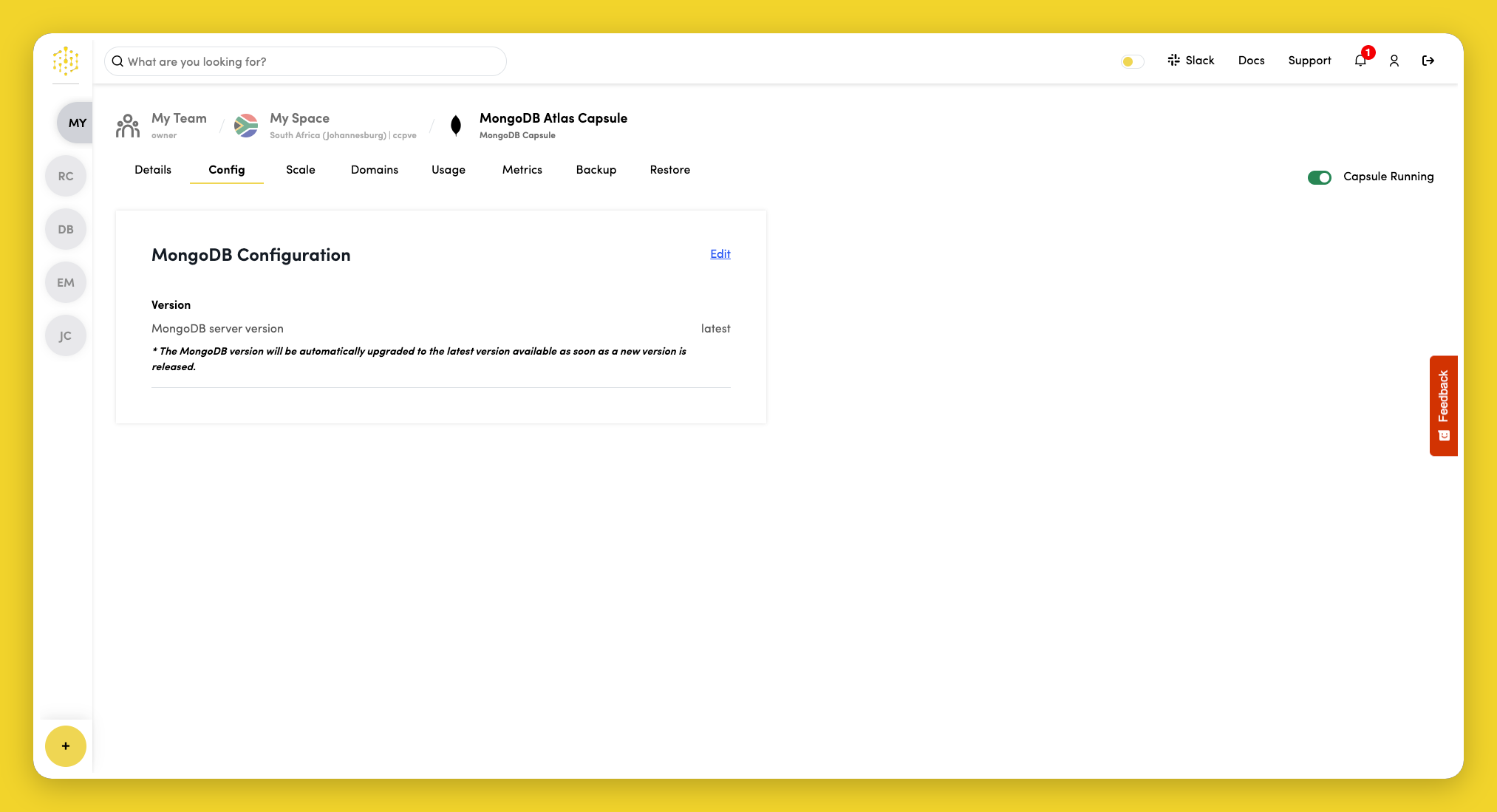
You can upgrade to a newer supported version; downgrades are not supported.
If your capsule uses the latest version option, MongoDB is automatically upgraded to the newest available version when it is released.
See Versions for supported versions and upgrade paths.