Choose and Upgrade Your MongoDB Version
Code Capsules MongoDB Capsules run on MongoDB Atlas. Supported versions depend on whether you use a Dedicated or Shared cluster. This guide covers which versions are available, how to check your current version, and how to plan a major version upgrade.
Supported Versions
Dedicated clusters
| Version | Status |
|---|---|
| 7.0 | Supported |
| 8.0 | Supported |
| latest | Supported — automatically upgraded when new versions are released |
New Dedicated MongoDB Capsules are provisioned on the latest supported version unless you choose otherwise during setup.
Shared clusters
| Version | Status |
|---|---|
| 8.0 | Supported |
Shared cluster versions cannot be changed from the dashboard. Upgrade to a Dedicated cluster from the Scale tab if you need version management.
Patch releases within a major version are applied by MongoDB Atlas and do not require any action on your part.
Check Your Version
The current MongoDB server version is shown in the Config tab under MongoDB Configuration.
You can also verify the version by connecting to your database and running:
db.version();
If you connect from your local machine, connect with mongosh using the Public Connection String from your capsule Details tab. See Connect from Outside Code Capsules for details.
Upgrade Paths
Major version upgrades must follow a single step at a time. You cannot downgrade. Upgrades are only available for Dedicated clusters.
| From | To | Allowed | Guide |
|---|---|---|---|
| 7.0 | 8.0 | Yes | 7.0 to 8.0 |
| 8.0 | latest | Yes | — |
| latest | — | Auto-upgraded when new versions are released | — |
| Any | Earlier | No — downgrades are not supported | — |
Before Any Major Upgrade
- Take a backup. Create a manual backup before changing the MongoDB version. Major upgrades are difficult to reverse.
- Plan for brief disruption. Code Capsules applies the new version on MongoDB Atlas while your capsule status shows Updating. Your applications may experience short connection interruptions during the rollout.
- Follow the upgrade guide for your target version. See 7.0 to 8.0 when upgrading from MongoDB 7.0.
Change the MongoDB Version
After prerequisites are met (if applicable):
- Open your MongoDB Capsule dashboard.
- Go to the Config tab.
- In the MongoDB Configuration section, click Edit, select the target version, and save.
- Confirm the upgrade when prompted.
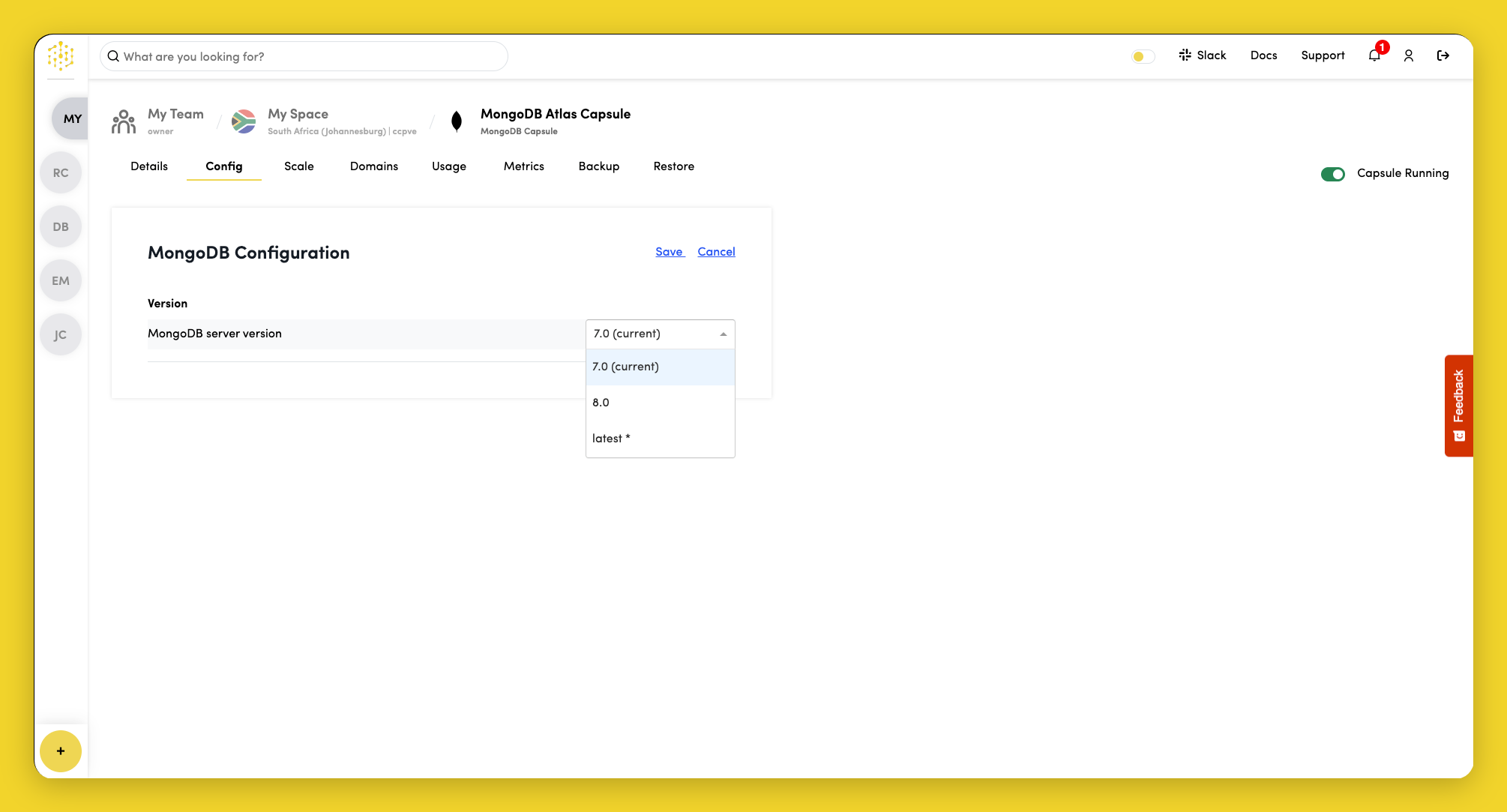
Wait until the capsule reports as Running and the new version is fully applied before making further changes.
Selecting latest enables automatic upgrades to the newest supported version when one is released.
After Upgrading
- Verify application connectivity against the new version.
- Re-run
db.version()to confirm the expected version is active. - Review application logs for driver compatibility or query errors.