Configure Your MySQL Database
Configure a Database Capsule in the Details tab of the Capsule dashboard.
View Connection Details
The Details tab provides connection details for a Database Capsule.
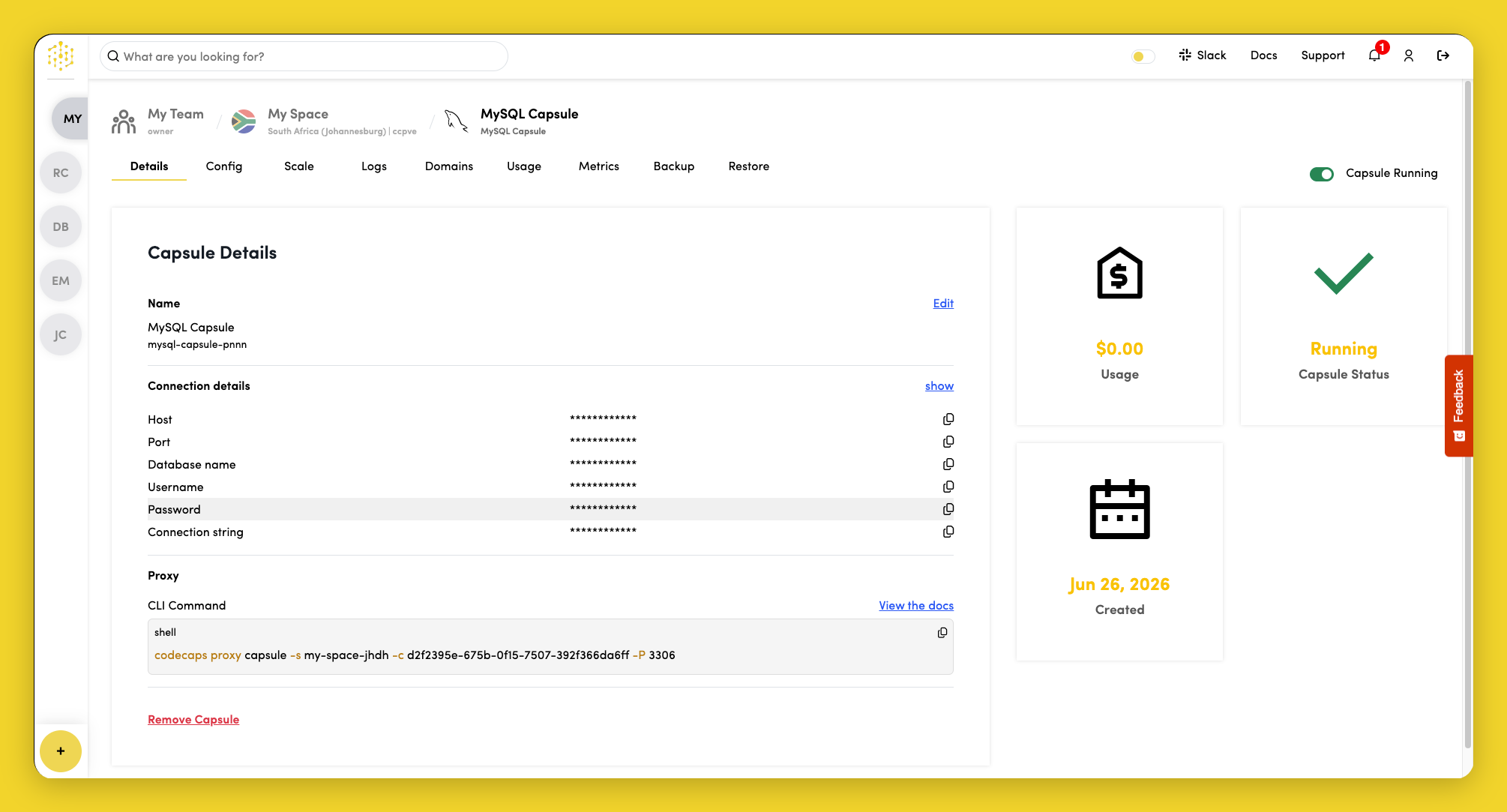
Click show in the Connection Details section to view database credentials:
- Host
- Port
- Database name
- Username
- Password
- Connection string
Connect from Your Local Machine
MySQL Capsules are not publicly accessible. To connect from your laptop—for example, to run SQL or check your server version—open a secure tunnel with the Code Capsules CLI and connect with the mysql client. See Connect Locally for the full workflow, client installation, and examples.
Edit Capsule Name
To change the name of the Capsule, click Edit next to the Capsule name in the Capsule Details section.
Configure MySQL Settings
These settings are only available for MySQL Capsules.
Additional MySQL configuration is available in the Config tab of MySQL Capsules.
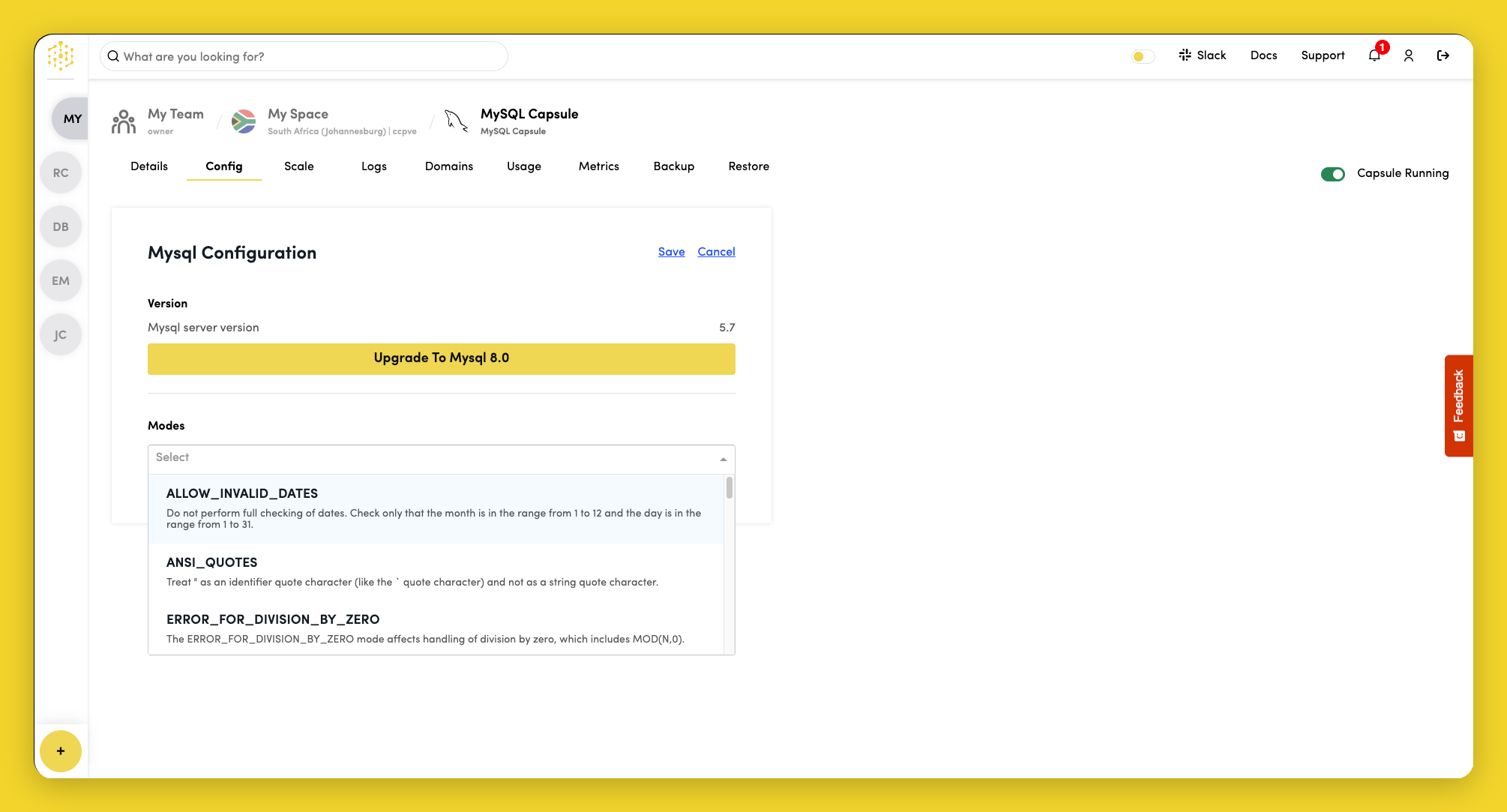
Set SQL Modes
In the MySQL Configuration section, click Edit to select SQL modes for your MySQL server.
SQL modes determine how MySQL handles queries and data validation. Common options include:
STRICT_TRANS_TABLES- Enables strict mode for transactional tablesNO_ZERO_DATE- Prevents the use of invalid date valuesONLY_FULL_GROUP_BY- RequiresGROUP BYto list all selected columns
Set MySQL Version
In the MySQL Configuration section, you can select the MySQL server version for your Capsule.
Supported major versions are 5.7 and 8.0. Major version upgrades must be done one step at a time (for example, 5.7 to 8.0).
See MySQL Versions for supported versions and upgrade paths.