Configure Your Docker Container
Configure a Docker Capsule in the Config tab. Settings here control how your capsule is built, how traffic reaches your application, and how the capsule connects to other services in your Space. Most settings apply to every Docker Capsule. Settings marked Git deployments only apply only to capsules deployed from Git.
The capsule source and deployment strategy are managed in the Deploy tab — see Deployments.
Capsule parameters
The Capsule Parameters section is split into Build and Runtime, each with its own Edit link:
| Section | Settings | When you save |
|---|---|---|
| Build | Docker File, Docker Build Context | Rebuilds and deploys the capsule |
| Runtime | Network port, Health check | Redeploys the capsule, without a new build |
To change a setting:
- Click Edit next to Build or Runtime.
- Update the settings.
- Click Save, then confirm.
You can edit one section at a time.
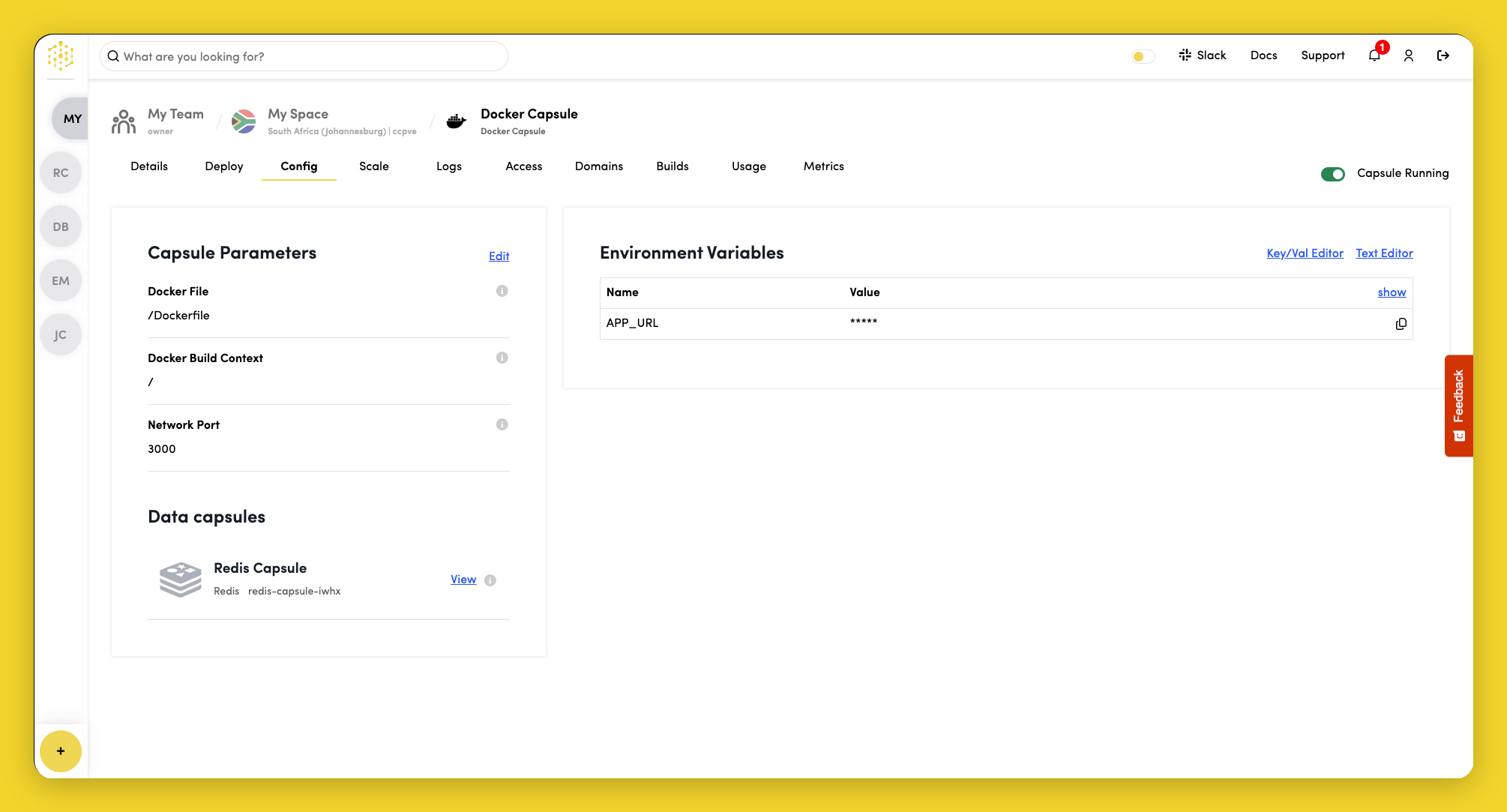
Build settings
When you save a change in Build, Code Capsules rebuilds your code with the new settings and deploys the result. A build can take a few minutes.
Build settings are only shown for capsules deployed from Git. Capsules deployed from an existing image are not built by Code Capsules.
Docker File
The Docker File field is the path to your Dockerfile from the repository root. The default is /Dockerfile.
Examples:
| Repository layout | Docker File | Docker Build Context |
|---|---|---|
Dockerfile at root | /Dockerfile | / (or leave empty) |
api/Dockerfile | /api/Dockerfile | /api |
services/web/Dockerfile | /services/web/Dockerfile | /services/web |
Docker Build Context
The Docker Build Context is the directory passed to docker build as the build context. The default is the repository root (/).
Set a subdirectory when your Dockerfile and application code live in a nested folder. The build context can also be a URL to a public Git repository — in that case, the repository is downloaded and used as the build context.
For monorepos, point the build context at the service directory and set the Docker File path accordingly. This keeps the build focused and avoids sending the entire repository to the Docker daemon.
Runtime settings
When you save a change in Runtime, Code Capsules redeploys the capsule with the new settings, replacing its running replicas using your deployment strategy. It does not start a new build.
Network port
The Network Port is the port your application listens on. Code Capsules routes HTTPS traffic to this port and configures ingress accordingly. The default is 3000.
Your application must listen on this port when the capsule runs. If you deploy an image that always listens on a fixed port, set the network port to match — see Images that use a fixed port. Code Capsules also injects a PORT environment variable set to this value, so your app can read the port at runtime. See Container requirements for how to use PORT in your application.
Health check
A health check tells Code Capsules when your application is ready for traffic, and restarts replicas that stop responding. To set one:
- In the Capsule Parameters section, click Edit next to Runtime.
- Set Health Check to Automatic or Manual.
- Enter the Endpoint your application responds to, for example
/health. With Manual, also set Timeout (seconds) and Time to First Check (seconds). - Click Save, then confirm.
See Health checks for each setting, how failing replicas are handled, and how to write a good endpoint.
Environment variables
Each Docker Capsule receives platform-injected variables automatically:
| Variable | Description |
|---|---|
PORT | The network port your app should listen on |
APP_URL | The public URL of your capsule |
To add custom environment variables:
- Open the Config tab.
- Click Key/Val Editor or Text Editor in the environment variables section.
- Enter the variable Name and Value.
- Click Save.
Saving environment variables restarts the capsule with the new values. A new build is not required.
To view sensitive values, click show in the top-right corner of the variables table.
Connect data capsules
Database Capsule
See the Database Capsule documentation for creating and managing database instances.
In the Data capsules section of the Config tab, click View next to a Database Capsule to see its connection details.
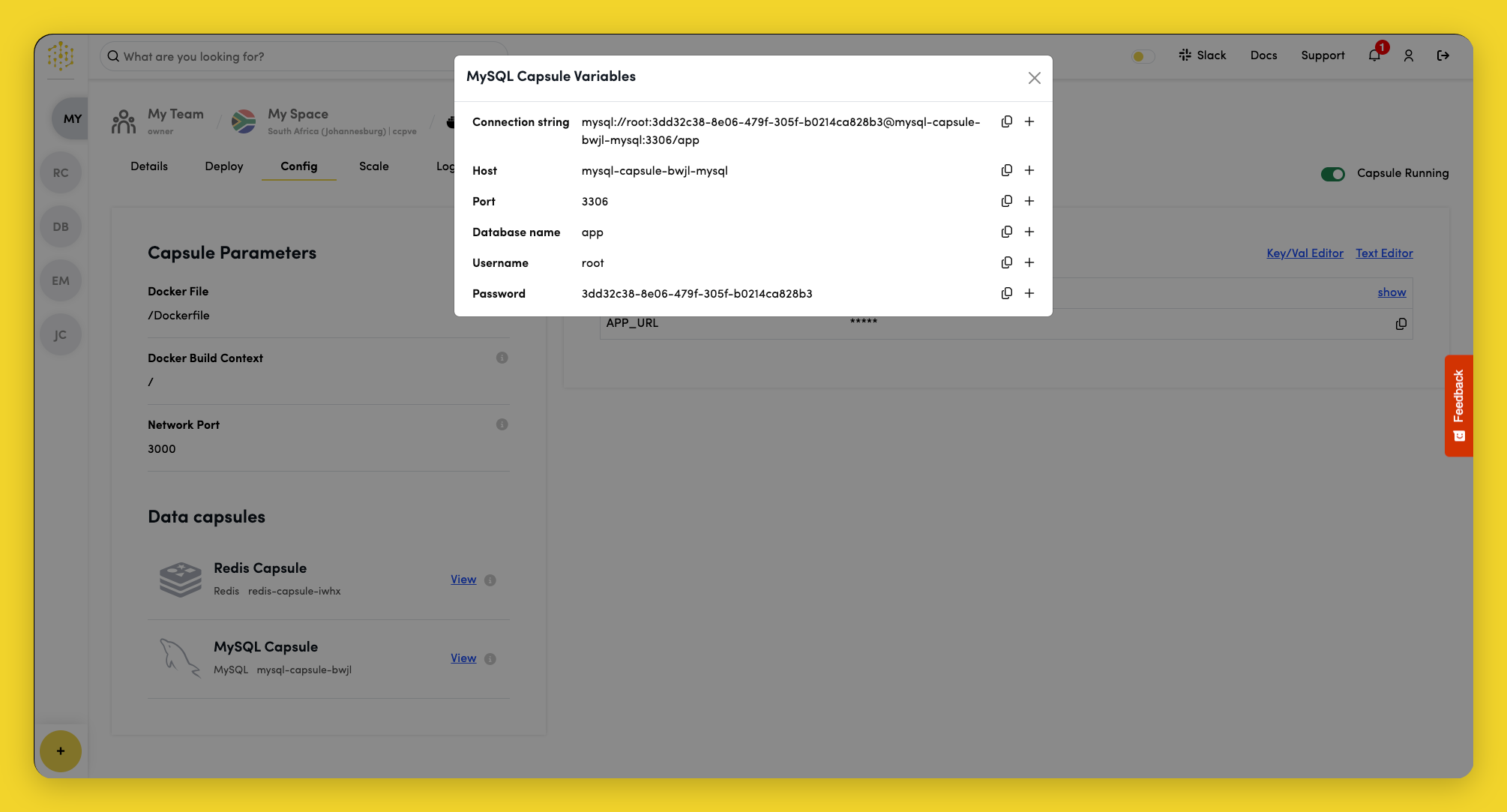
Click + next to the connection string to create a DATABASE_URL environment variable in your Docker Capsule. Your application can use this variable to connect to the database.
Storage Capsule
A Storage Capsule provides persistent file storage that survives capsule restarts and redeploys.
In the Data capsules section, click Bind next to your Storage Capsule. Both capsules must be running to bind.
During the bind process, Code Capsules creates a PERSISTENT_STORAGE_DIR environment variable and restarts your Docker Capsule. Reference this path in your application to read and write files that persist across capsule restarts and redeploys.