Manage, Roll Back, and Track Your Deployments
Every Docker Capsule deploy creates a build, whether Code Capsules builds your Dockerfile from Git or pulls an existing image. This page covers the deployment settings and build history that work the same way for both.
Deploy tab
Open the Deploy tab to manage your capsule's source and deployment settings.
Change the source
Click Edit in the Capsule Source section to:
- Change the repository or branch, for a capsule deployed from Git
- Change the image reference, for a capsule deployed from a container image
Saving a new source starts a new build and deploy.
You choose Git repository or Container image when you create the capsule, and you can't change it later. To move to the other source, create a new Docker Capsule.
Deployment strategy
The Deployment strategy controls how Code Capsules updates the capsule when a new build completes.
| Strategy | Behavior | Best for |
|---|---|---|
| Rolling update (default) | New replicas start before old ones are removed | Web applications with zero-downtime requirements |
| Recreate | All existing replicas stop before new ones start | Apps that cannot run two versions simultaneously |
Click Edit next to Deployment Strategy to change this setting. Saving does not restart or redeploy the capsule. The new strategy takes effect on the next deploy.
Recent builds
The Builds panel on the Deploy tab lists recent builds. Click View Logs to open build output in the Builds tab, or click Deploy on a previous successful build to roll back.
Code Capsules retains a limited number of successful builds per capsule. The Deploy tab shows how many successful builds are stored (for example, 3 / 5 successful builds).
Only one build can run per capsule at a time. If a build is already in progress, a new build request waits or returns an error until the current build completes.
Build lifecycle
| Status | Description |
|---|---|
| Starting | Build queued and initializing |
| Building | Capsule is being built |
| Succeeded | Build completed and capsule running automatically |
| Failed | Build encountered an error — check the build log |
| Cancelled | Build was stopped before completion |
| Timed out | Build exceeded the allowed duration |
View build logs
Open the Builds tab to view build history and logs:
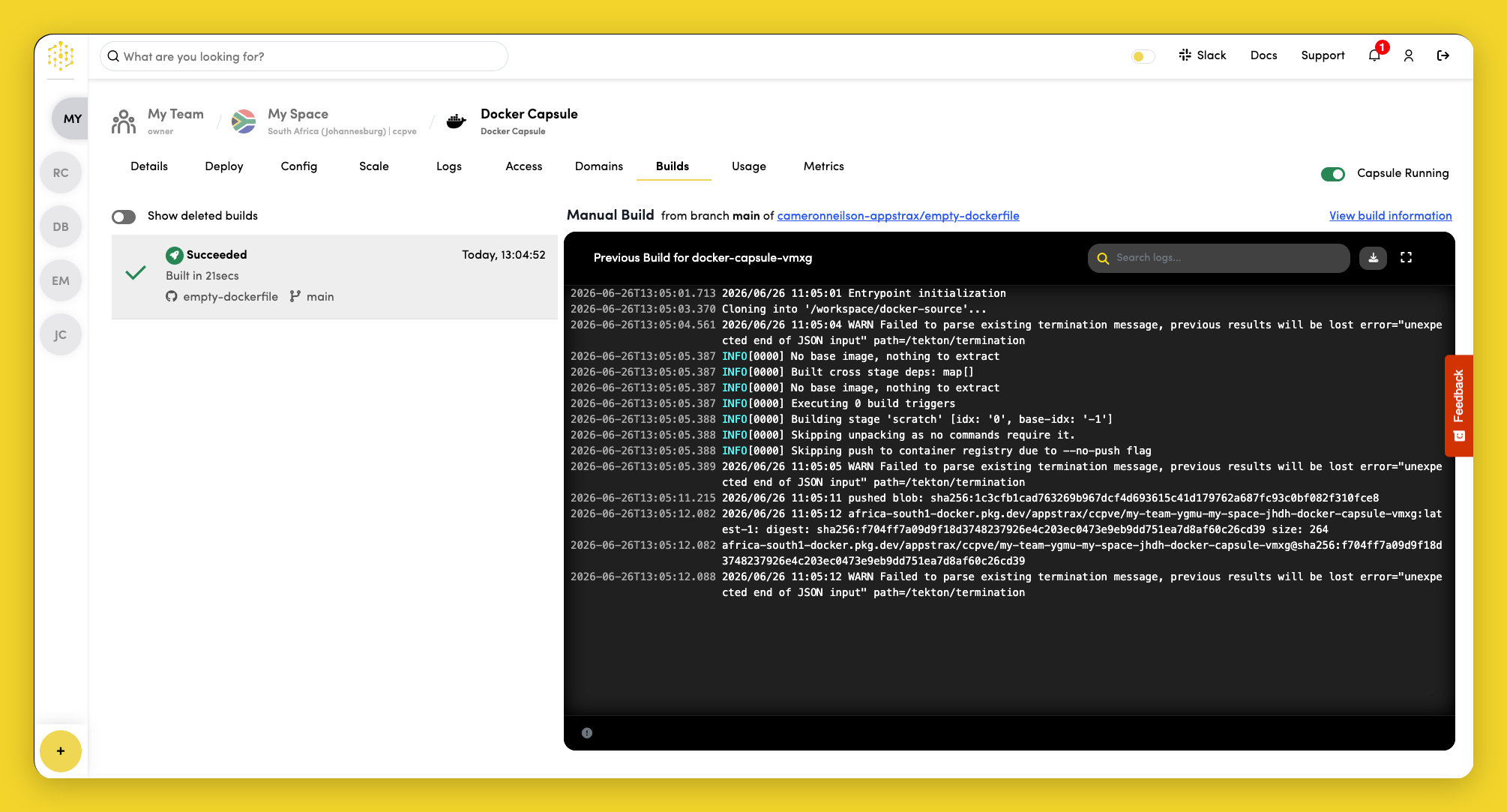
- Select a build from the list on the left
- Read the full build log on the right
From the Deploy tab, click View Logs on a recent build to jump to the same view.
Roll back to a previous build
To roll back:
- Open the Deploy tab.
- Find a successful build that is not currently deployed.
- Click Deploy.
Rolling back uses an existing build — it does not trigger a new build or pull. Successful deployments use your configured deployment strategy.
Troubleshooting
Cannot start a new build
- Wait for the current build to finish or cancel it.
Build or deploy fails
- For a capsule deployed from Git, see Troubleshooting builds.
- For a capsule deployed from an existing image, see Image deploy fails.
If the deploy succeeds but your application does not work at runtime, see Logs and Container requirements.