Deploy Your Existing Container Image
Deploy an existing image when you already build and publish your application as a container image. Code Capsules pulls the image and runs it. There is no Dockerfile build on Code Capsules.
To have Code Capsules build your image from a Dockerfile instead, see Deploy from Git.
Prerequisites
Before creating a capsule, make sure you have:
- A Code Capsules account with a Team and Space
- A public container image, for example on Docker Hub or GitHub Container Registry
Your image must meet the container requirements: it must listen on the capsule's network port, bind to 0.0.0.0, and start your application.
Image references
Enter the image the same way you would with docker pull:
| Image reference | What is deployed |
|---|---|
nginx | The latest tag of nginx on Docker Hub |
nginx:1.27 | The 1.27 tag of nginx on Docker Hub |
ghcr.io/your-org/your-app:v1 | The v1 tag of an image on GitHub Container Registry |
Only public images are supported. If you don't specify a tag, Code Capsules uses latest. Image names must be lowercase.
Create the capsule
- Log in to Code Capsules and open the Space where you want to run your application.
- Click the yellow + button and select New Capsule.
- Choose Docker Capsule, your Team, and Space, then click Next.
- On the Plan step, select or customize a payment plan, then click Next.
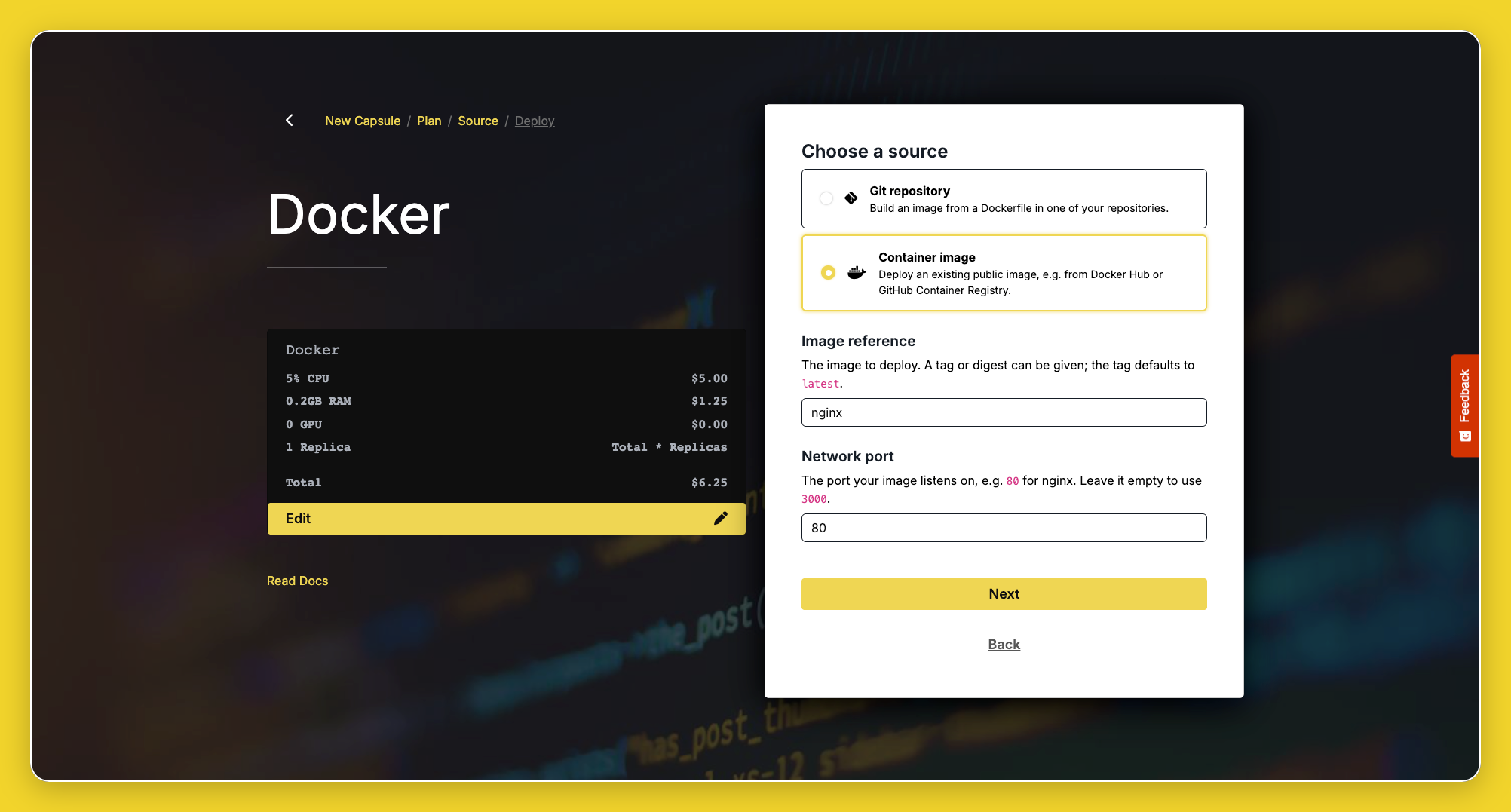
- On the Source step, select Container image.
- Enter the Image reference, then click Next.
- On the Deploy step, check the image shown, and enter a Capsule Name. The name defaults to the image name.
- Click Create Capsule.
Code Capsules creates the capsule and assigns a default hostname. You are taken to the capsule Details tab.
If the image's registry is not supported, Code Capsules shows an error when you click Create Capsule.
Deploy the image
The image is not deployed until you start the first deploy:
- Open the Deploy tab.
- Click Pull & Deploy, then confirm.
Follow progress in the Builds tab, where each pull appears as an Image import with its own log.
Capsules listen on port 3000 by default. If your image serves on a different port, change the network port in the Config tab.
Verify your capsule
- Open the Details tab and click the capsule URL.
- If the page does not load, check that the network port matches the port your image serves on.
- If the deploy fails, see Image deploy fails.
Next steps
After the first deploy, manage which version of your image is running:
- Image Updates — deploy a newer version of your tag, change the image, and fix failed image deploys
- Deployments — deployment strategy, deploy history, and rollback