Scale Your Docker Container Without Downtime
Allocate more resources to a Docker Capsule as your application's traffic and computational needs change. Docker Capsules support horizontal scaling through replicas and vertical scaling through CPU, RAM, and optional GPU allocation.
Scale resources
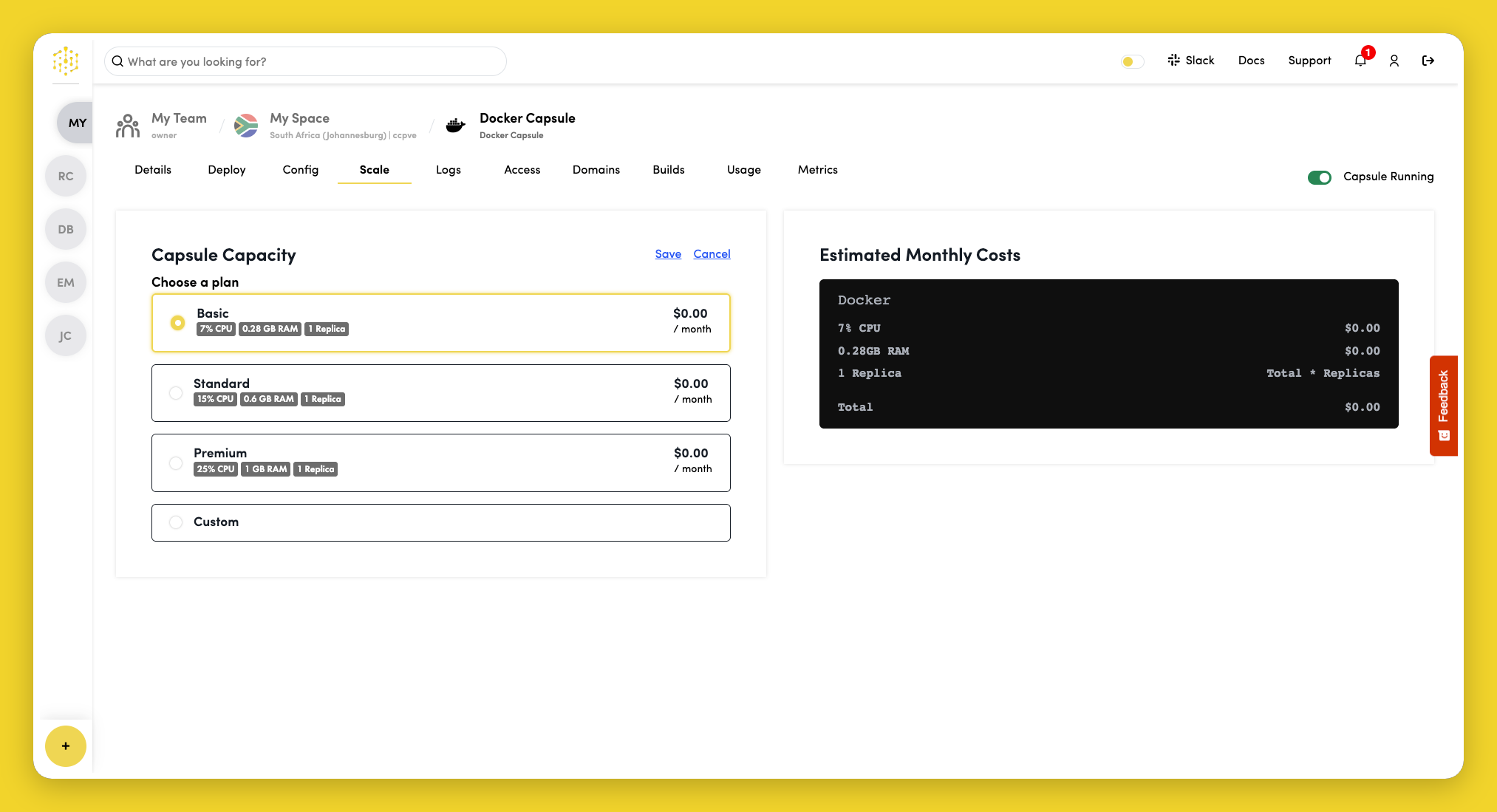
View scaling options in the Scale tab of the capsule dashboard. Click Edit in the Capsule Capacity section to adjust resources. You can only edit capacity while the capsule is running.
Select a plan, or choose Custom to adjust resources to your requirements:
| Resource | Description |
|---|---|
| CPU | Processing power allocated to each replica |
| RAM | Memory available to each replica |
| GPU | GPU devices per replica (when GPU is enabled for your Space) |
| Scale | Number of replicas running simultaneously |
Click Save to apply your changes. If the capsule is already running, Code Capsules updates it with the new resource limits.
Horizontal scaling
Increase Scale (replicas) to run multiple instances of your capsule behind the same URL. Code Capsules load-balances traffic across active replicas.
Horizontal scaling works well for stateless applications. If your app stores state in memory or on local disk, externalize it with a Storage Capsule or Database Capsule as appropriate, or use a single replica.
Vertical scaling
Increase CPU or RAM when individual replicas need more capacity — for example, when handling larger workloads, running compute-heavy tasks, or addressing out-of-memory errors.
Vertical scaling applies to each replica independently. If you run three replicas with 1 GB of RAM each, total memory usage across the capsule is 3 GB.
GPU scaling
When GPU is enabled for your Space, you can allocate GPU devices to Docker Capsules. This is useful for machine learning inference, media processing, and other GPU-accelerated workloads.
GPU availability depends on your region and namespace capabilities. Configure GPU allocation from the same Scale tab when the option is available.
Start and stop
You can temporarily stop a Docker Capsule without deleting it using the toggle in the capsule header:
- Stop — sets replicas to
0; the capsule stops consuming compute resources but retains its configuration and build history - Start — starts the capsule with 1 replica; use the Scale tab to increase replicas after starting
If a bound Storage Capsule is stopped, you must start it before you can turn the Docker Capsule back on.
Scaling and Storage Capsules
Before increasing replicas, consider how your application handles shared state. Bind a Storage Capsule or Database Capsule — see Configure. Local capsule storage is not shared between replicas and is lost when the capsule restarts.